English
English
Appearance
Connect Repliz to Codex, OpenAI's coding agent. Codex in the ChatGPT desktop app, the Codex CLI, and the Codex IDE extension share one settings file, so you set Repliz up once for all three.
Codex, not ChatGPT chats
This page is for Codex. To use Repliz in ordinary chats on chatgpt.com, see ChatGPT.
Open Settings → Public API in the Repliz dashboard and copy the Access key and the Secret key. You'll paste them into the Repliz sign-in page in step 3.
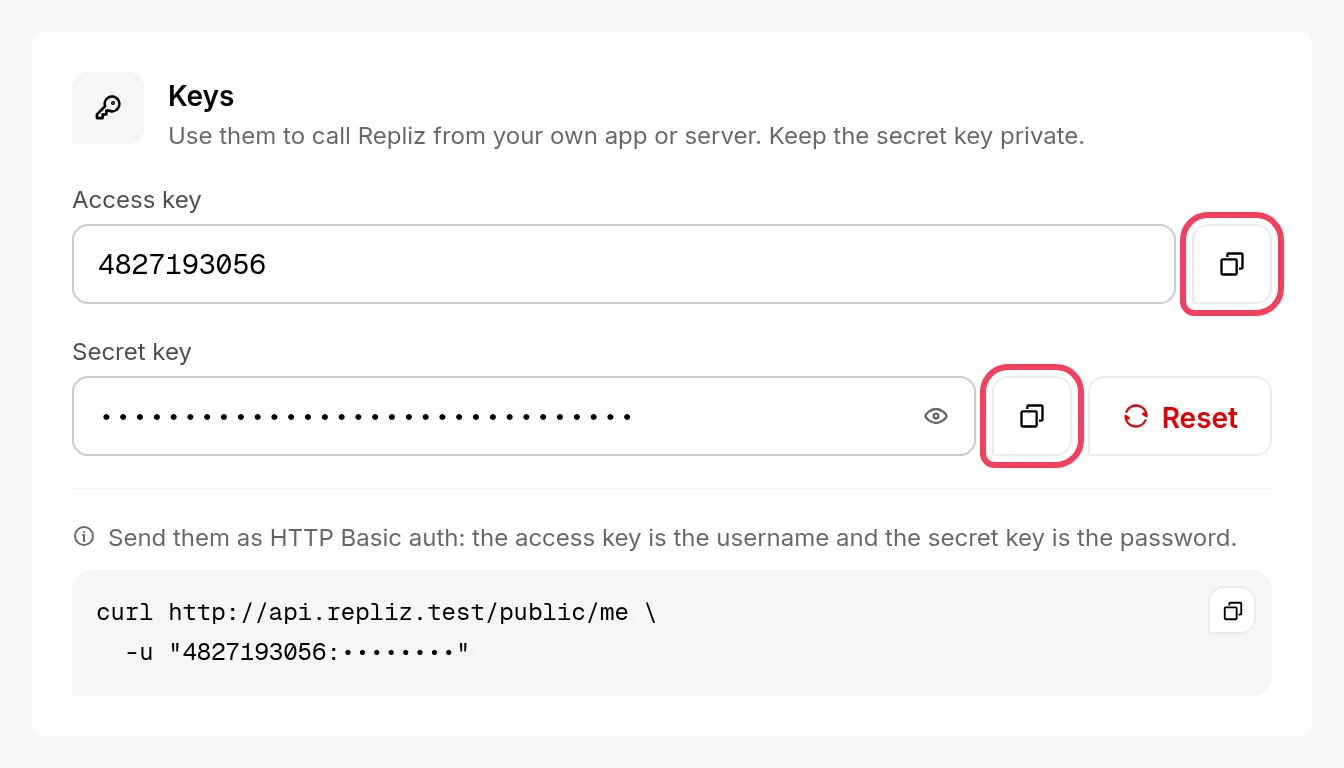
Run this in a terminal:
codex mcp add repliz --url https://mcp.repliz.com/mcpIt adds Repliz to Codex's settings file, config.toml. If you'd rather edit the file yourself, open it in the Codex folder, or create it if it isn't there:
~/.codex/config.toml%USERPROFILE%\.codex\config.tomlAnd add these lines at the end:
[mcp_servers.repliz]
url = "https://mcp.repliz.com/mcp"codex mcp login repliz.Codex opens the Repliz sign-in page in your browser. Paste your Access Key and Secret Key, and click Connect; the browser then hands the sign-in back to Codex.
Codex reads its settings when it starts, so start a new codex session, or restart the app or the extension if you haven't since step 2. Then check that Repliz is listed and enabled:
codex mcp listInside Codex, /mcp shows the active servers and their tools. Ask something, for example "Show my connected Repliz accounts." For more ideas, see the usage examples.
Instead of a sign-in, Codex can send your keys in the Authorization header on every request.
Make the header value: Basic, a space, and your AccessKey:SecretKey encoded in base64. Paste both keys below and copy the result.
Paste both keys to get the value.Worked out in your browser. Your keys are not sent anywhere.
codex mcp add can't set a header, so add it to config.toml yourself, with the whole value from step 1 in place of Basic YOUR_VALUE:
[mcp_servers.repliz]
url = "https://mcp.repliz.com/mcp"
http_headers = { "Authorization" = "Basic YOUR_VALUE" }In the CLI and the IDE extension, Codex can read the header from an environment variable instead:
[mcp_servers.repliz]
url = "https://mcp.repliz.com/mcp"
env_http_headers = { "Authorization" = "REPLIZ_AUTHORIZATION" }export REPLIZ_AUTHORIZATION="Basic YOUR_VALUE"The ChatGPT desktop app may not see variables you set in a terminal, so http_headers is the simpler choice there.
Some Repliz tools change things: they reply to comments, send DMs, schedule posts, and delete. To hide tools from Codex, list them under disabled_tools:
[mcp_servers.repliz]
url = "https://mcp.repliz.com/mcp"
disabled_tools = ["repliz_delete_account", "repliz_delete_content"]
Comments and messages from strangers can carry instructions aimed at the assistant, so read what Codex proposes before you approve a reply, a DM, or a deletion.
Repliz isn't listed. Check that the file is saved as config.toml in the Codex folder above, and restart Codex. A typo in the file, such as a missing quote, stops Codex from reading it.
codex mcp login can't register with Repliz. Repliz supports both ways Codex registers, Client ID Metadata Documents and Dynamic Client Registration. Try the other one explicitly:
codex mcp login repliz --oauth-client-registration dcrThe sign-in page says Repliz didn't accept the keys. Copy both keys again from Settings → Public API. If the Secret Key was reset, only the new one works.
Repliz tools fail with Unauthorized. If you signed in, the Secret Key may have been reset since, or Repliz hasn't been used for 30 days: run codex mcp login repliz again. With the header, check that the value starts with Basic and a space. Don't use bearer_token_env_var for Repliz: it sends Bearer in front of the value, and Repliz expects Basic.
Codex says a tool isn't on your plan. The tools follow your Repliz plan. See Available tools for which plan each group needs.