English
English
Appearance
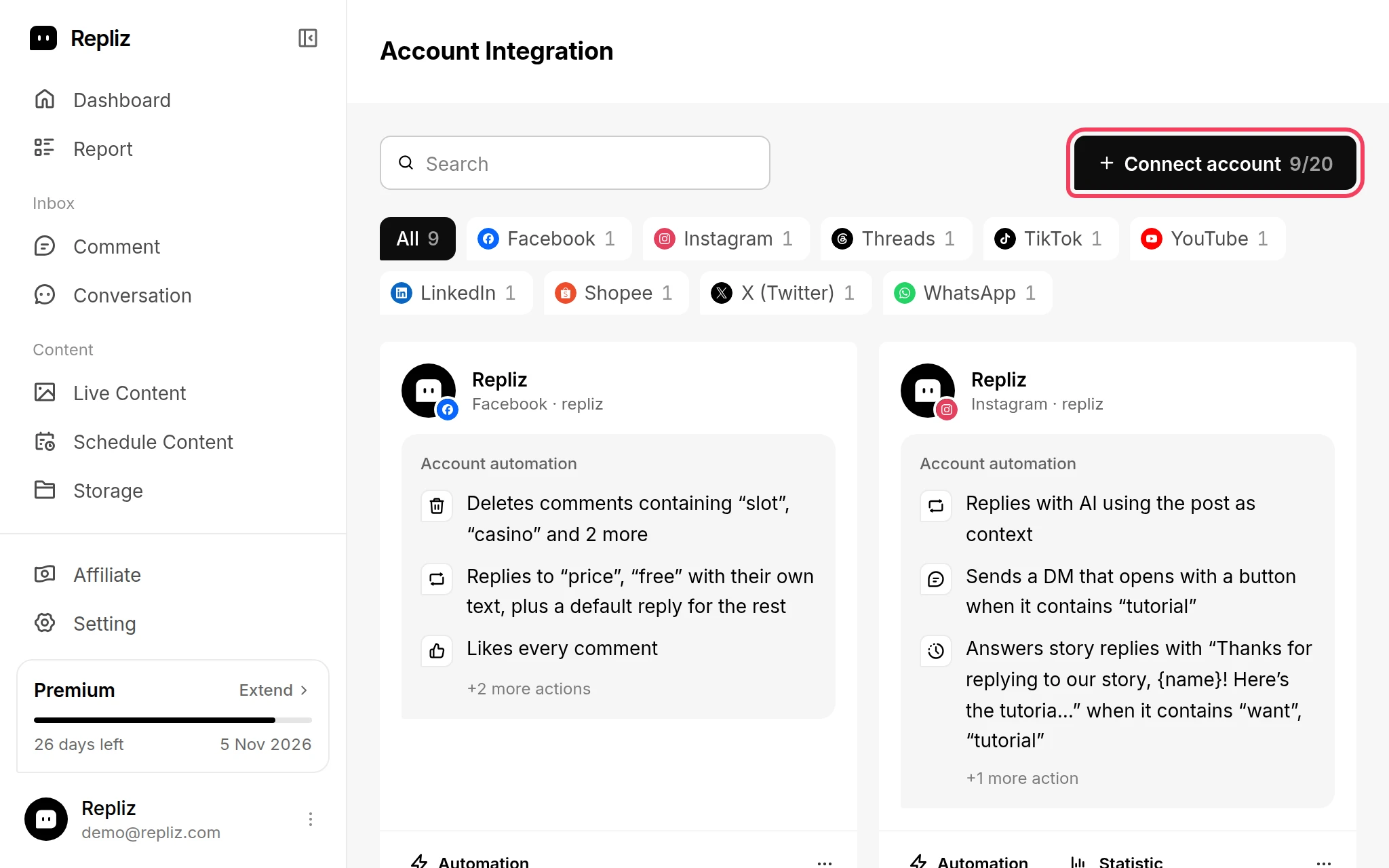
Account Integration is where you connect your social media accounts to Repliz and manage them afterwards. Open it from Account → Account Integration in the sidebar, or go to repliz.com/user/account.
| Platform | What you connect | Account automation |
|---|---|---|
| A Page | ✅ | |
| A Business or Creator account | ✅ | |
| Threads | An account | ✅ |
| TikTok | An account | ✅ |
| YouTube | A channel | ✅ |
| An organization or your personal profile | Organizations only | |
| Shopee | A shop | - |
| X (Twitter) | An account | - |
| WhatsApp (beta) | A WhatsApp number | - |
| Telegram (beta) | A Telegram account | Reply DM only |
| Pinterest (beta) | An account, posting to the boards you pick | - |
Every connected account can be used for scheduled posts. See Before You Start for what each platform can automate.
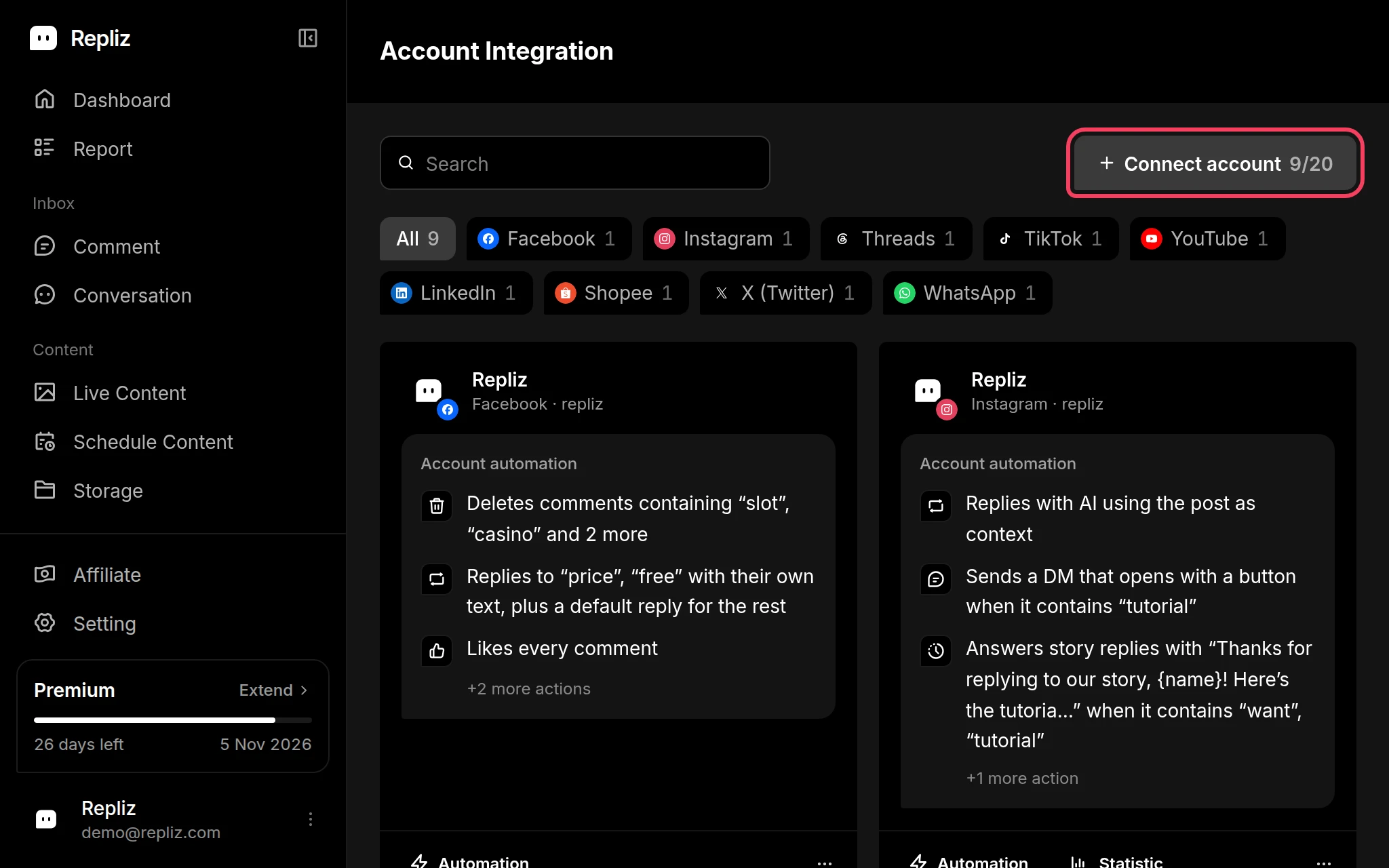
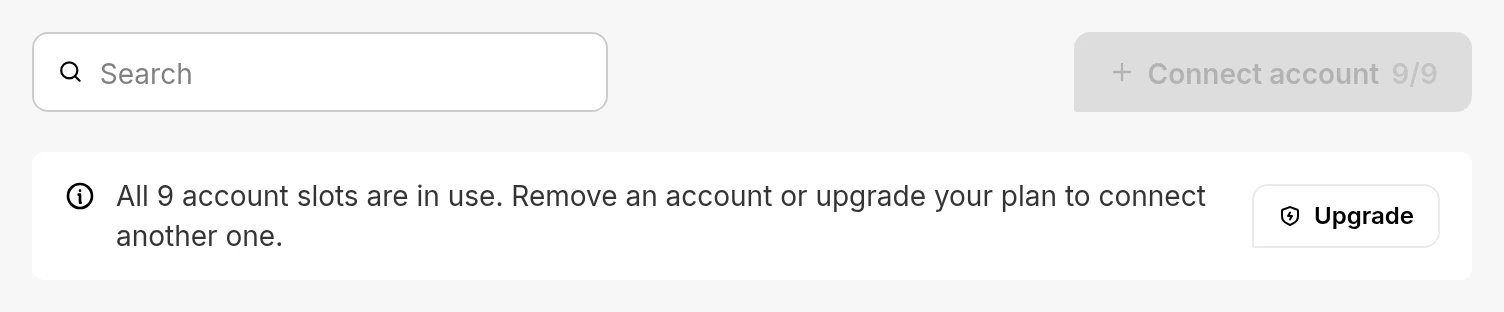
Click Connect account. The number next to it shows how many account slots you use out of your plan's limit.
The Connect Platform window opens. Click the platform you want. Each one shows how many accounts of that platform are already connected.
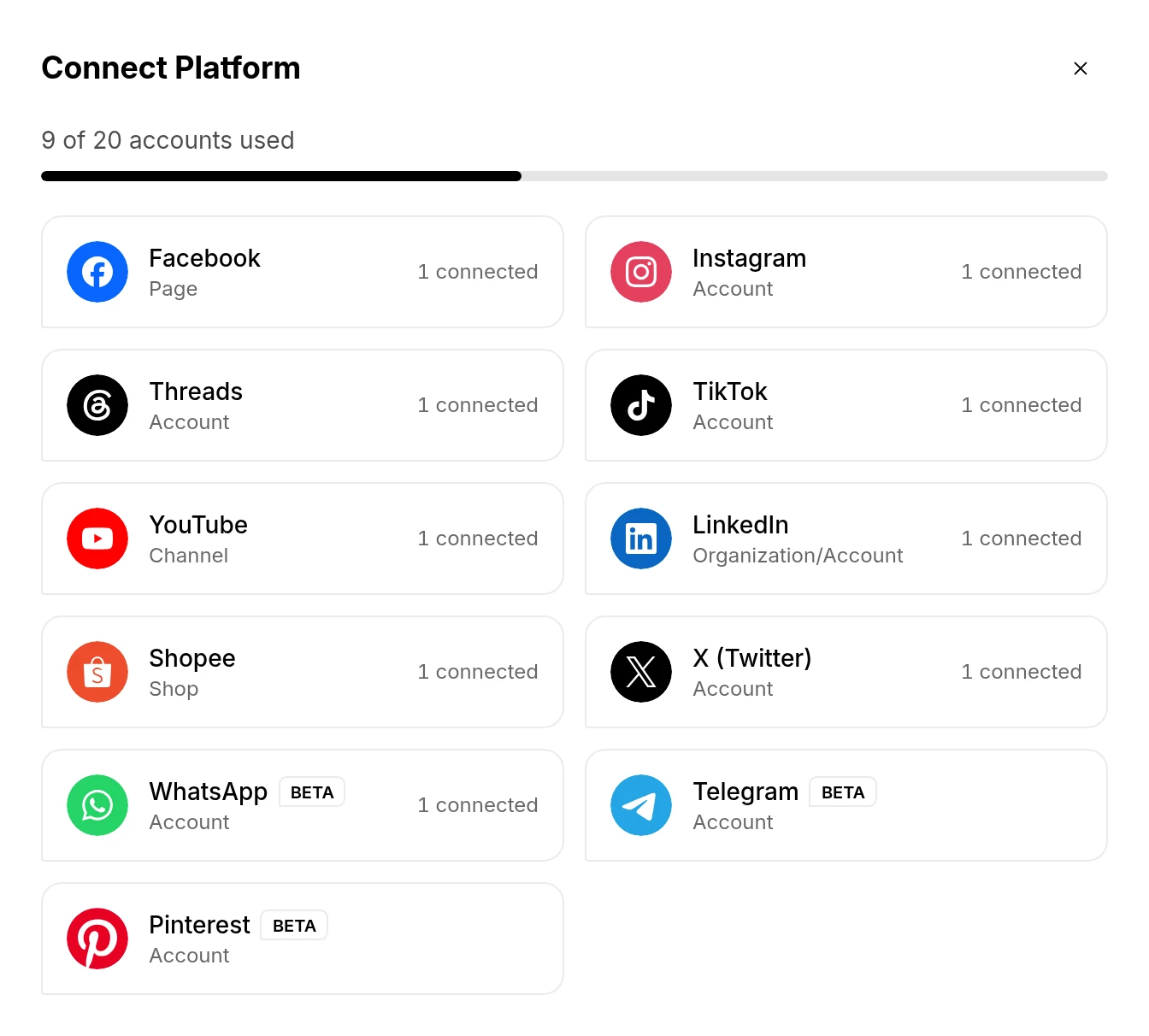
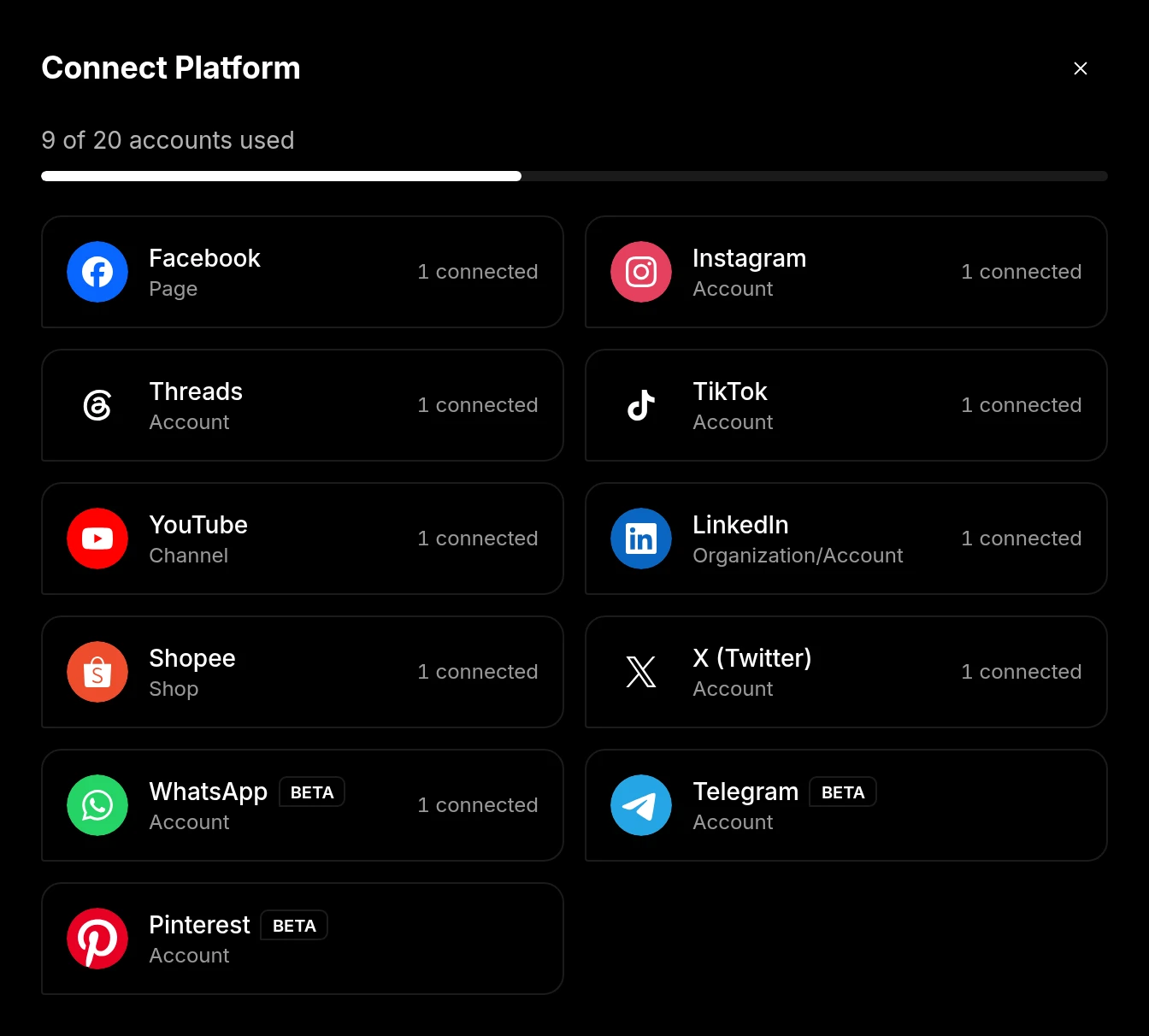
Follow the steps for that platform. The guide for each platform is in the table above.
Each connected account has a card with its name, platform, and username. Under it, Account automation reads back what Repliz does on the account's posts, up to three actions, with "+1 more action" when there are more.
The buttons at the bottom of the card:
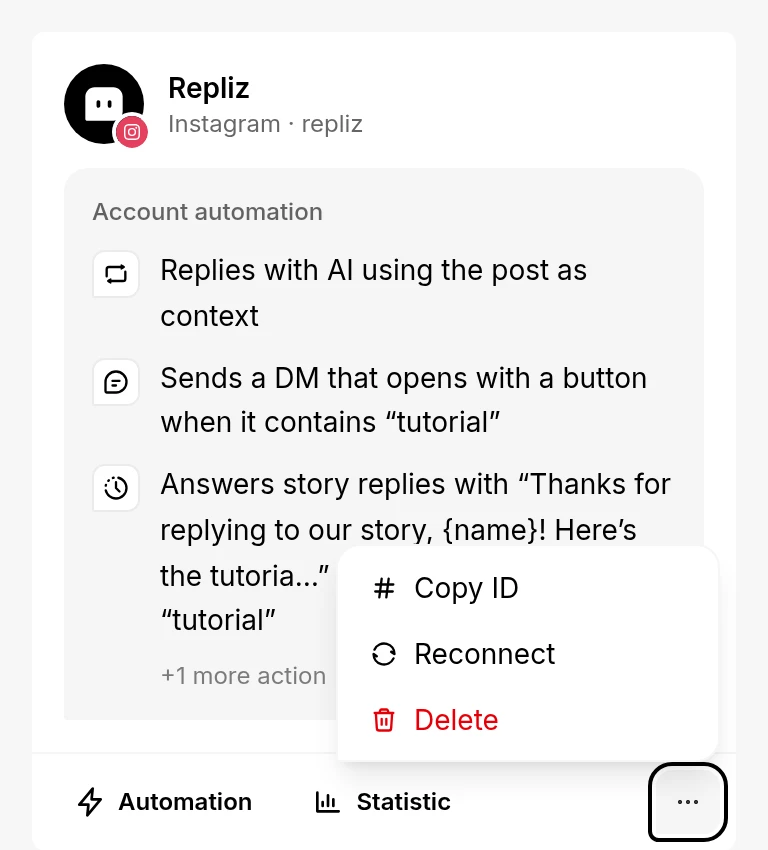
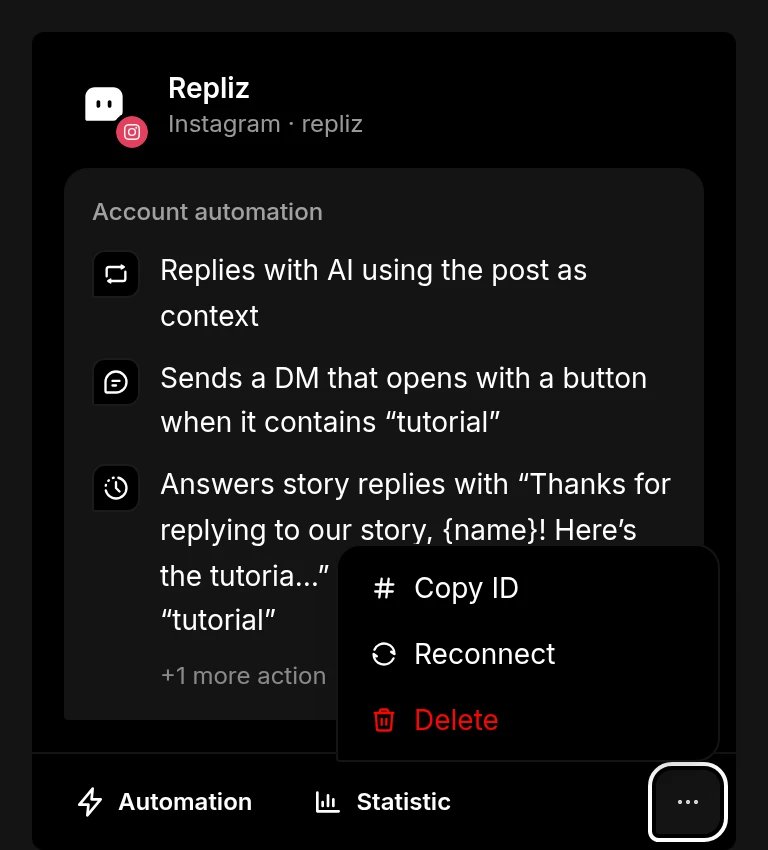
Above the cards, the platform buttons filter the list to one platform and show how many accounts each platform has. The search box finds an account by name when you press Enter.
Each connected account uses one slot, including each Page, channel, or organization you pick when you connect several at once. How many slots you have depends on your plan:
| Plan | Accounts |
|---|---|
| Free | 1 |
| Standard | 20 |
| Premium | 75 |
| Gold | 200, plus extra accounts as an add-on |
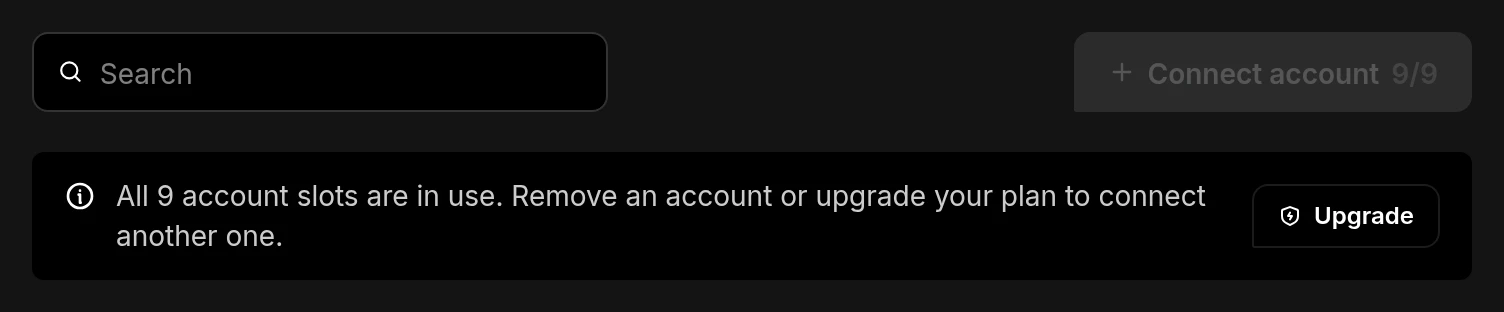
When every slot is in use, Connect account is greyed out and Repliz explains why. Click Upgrade to move to a bigger plan, or Add slots on Gold, or delete an account you no longer need.
When Repliz loses access to an account, for example because its access expired or you removed Repliz's access on the platform, its card gets a yellow outline and a Disconnected notice. Repliz can't work with the account until you reconnect it.
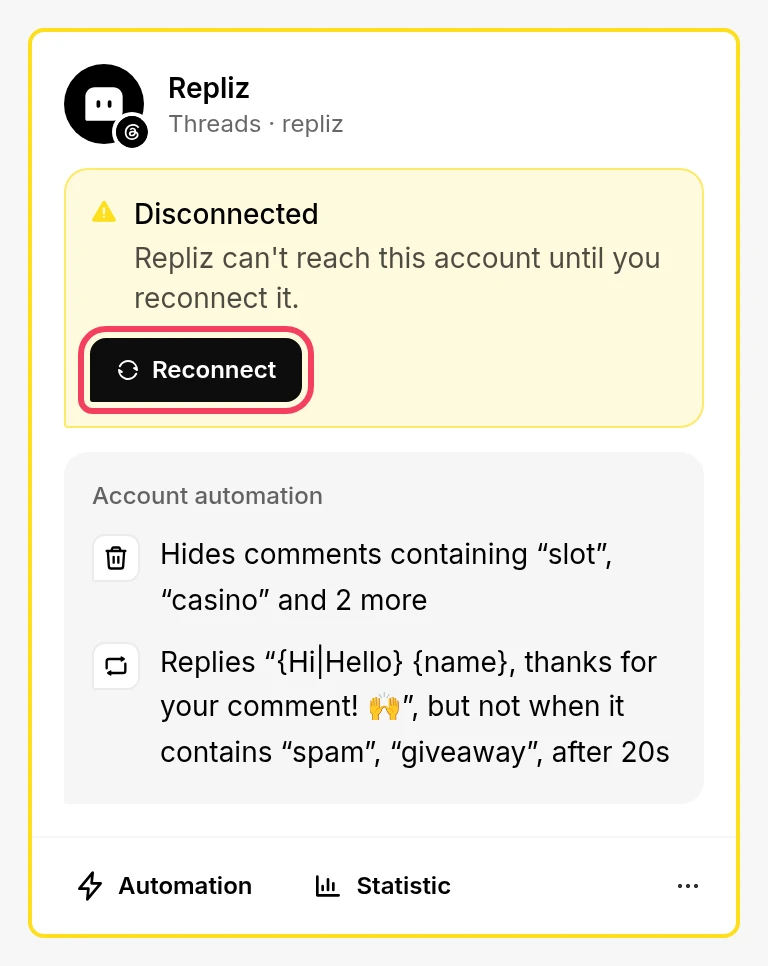
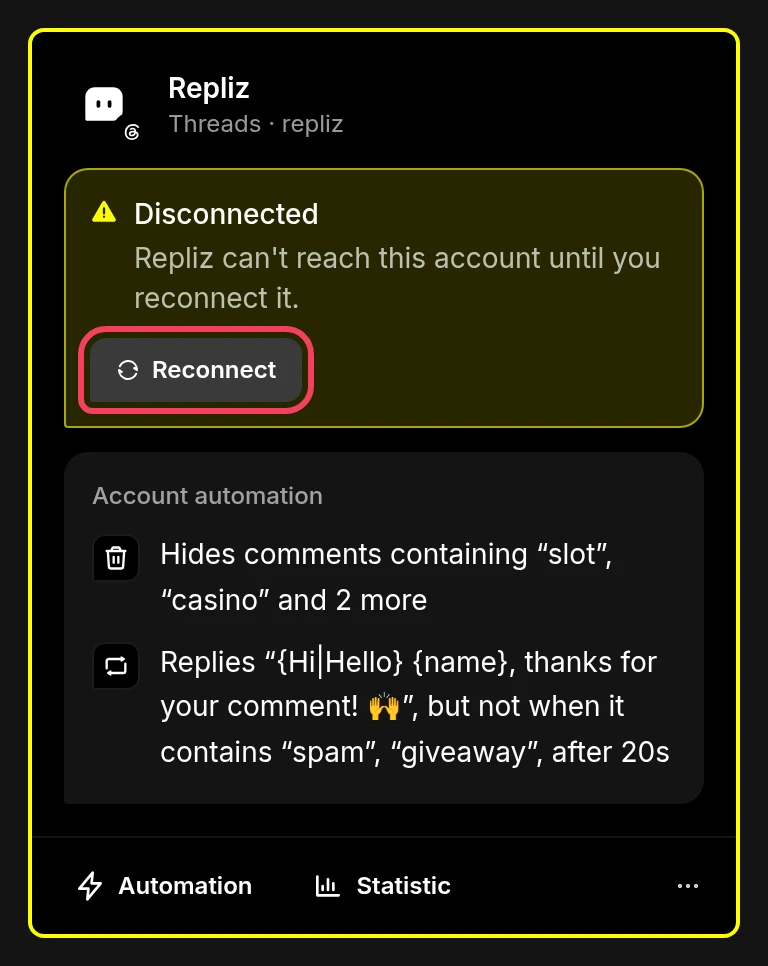
Click Reconnect and log in with the same account on the platform. The guide for each platform has the details.
All data associated with the account is deleted and can't be recovered. The account's slot becomes free again.
Click ⋯ on the account's card, then Copy ID. You need the ID when you work with an account through the API, the n8n node, or the MCP server.