English
English
Appearance
A template is a saved set of automation settings. Set it up once, then apply it to any account or post instead of filling in the same settings again. Templates live in Automation Template, under Automation in the sidebar.
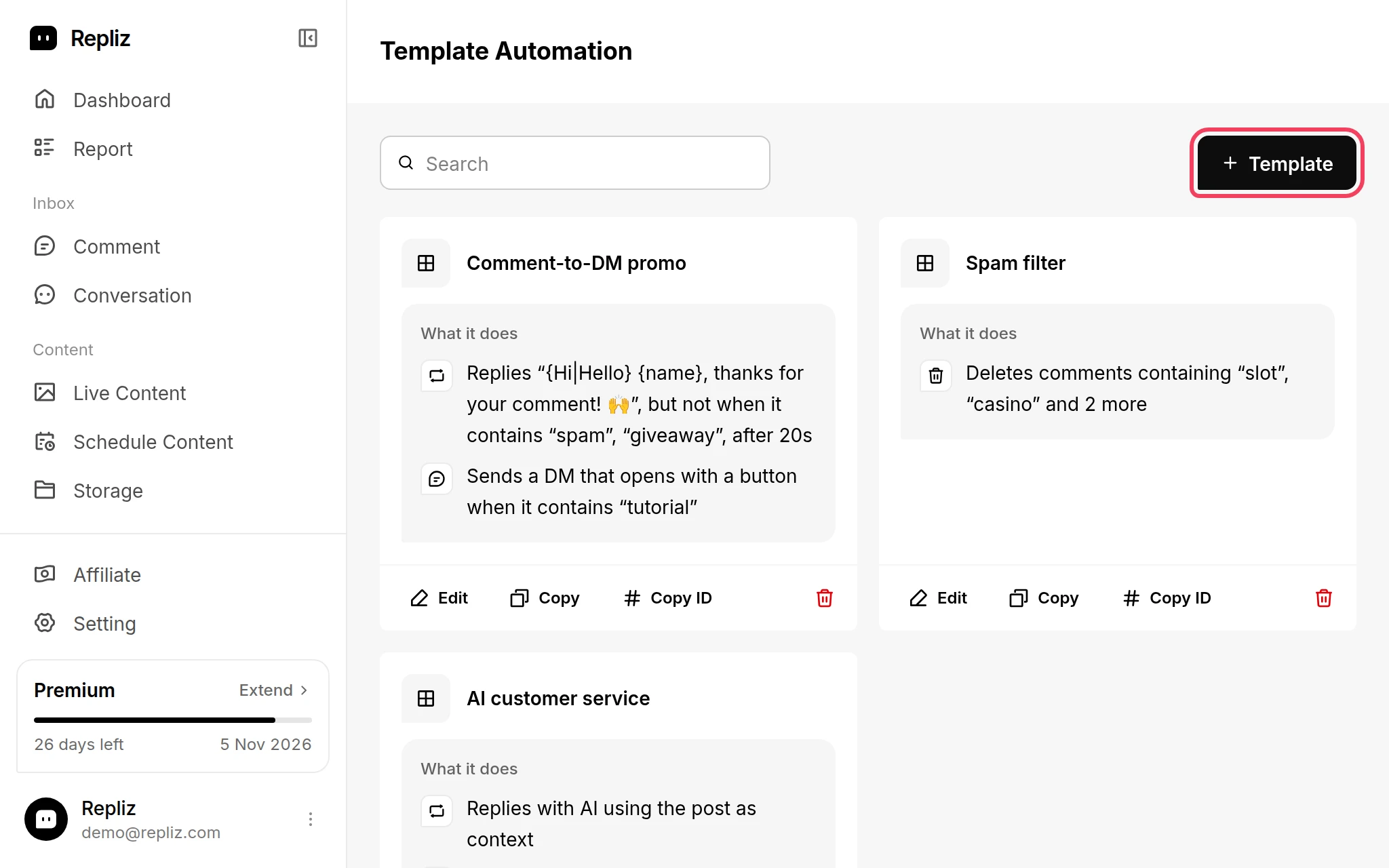
Open Automation Template and click + Template.
In the Create Template window, enter a Name.
Turn on the automations you want and fill in their settings. A template can hold all six automations, including Reply DM and Reply Story.
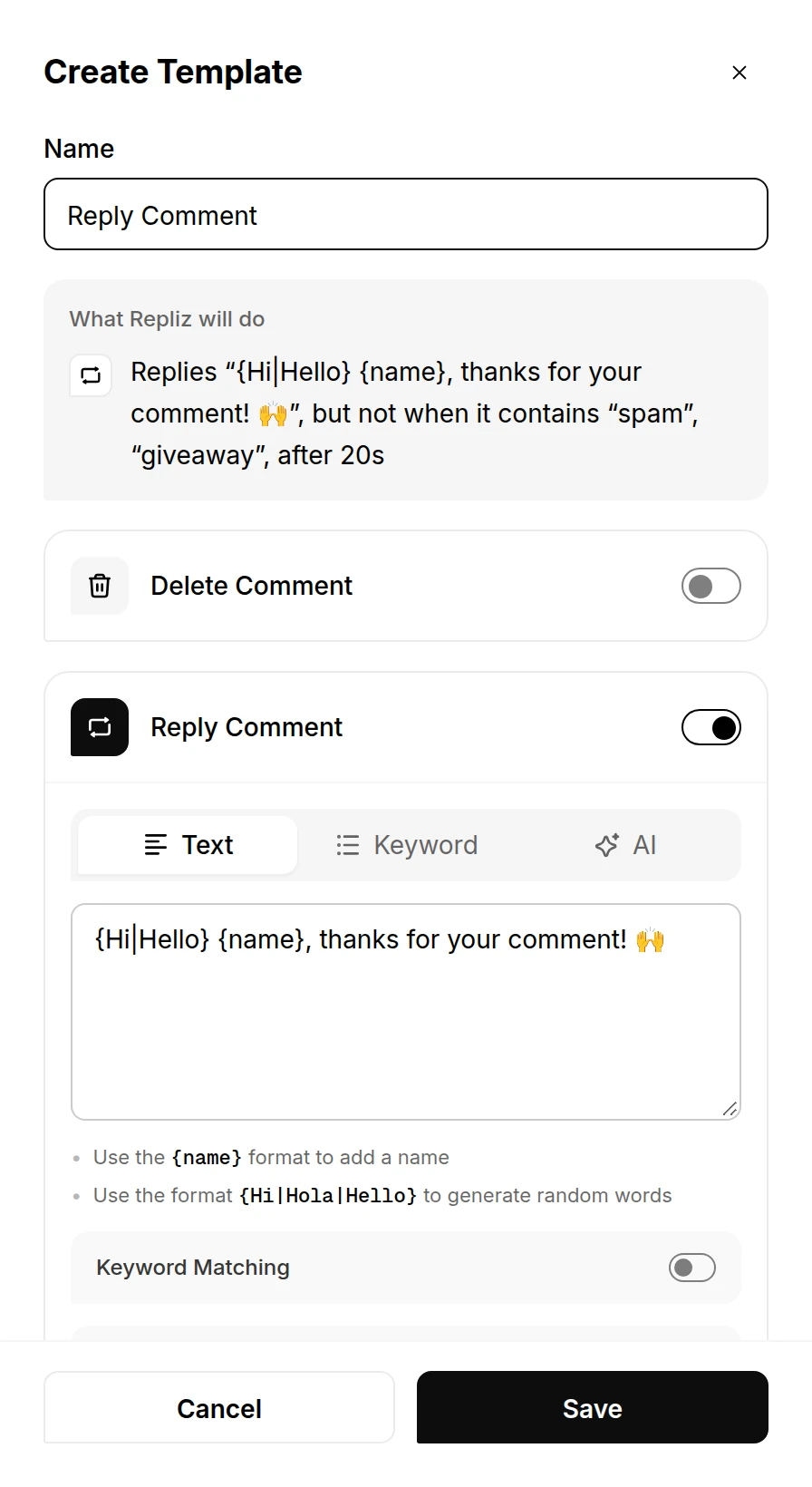
Click Save. It stays disabled until the template has a name.
Click Select Template.
Pick a template and click Select. Each template lists what it does, so you can tell them apart.
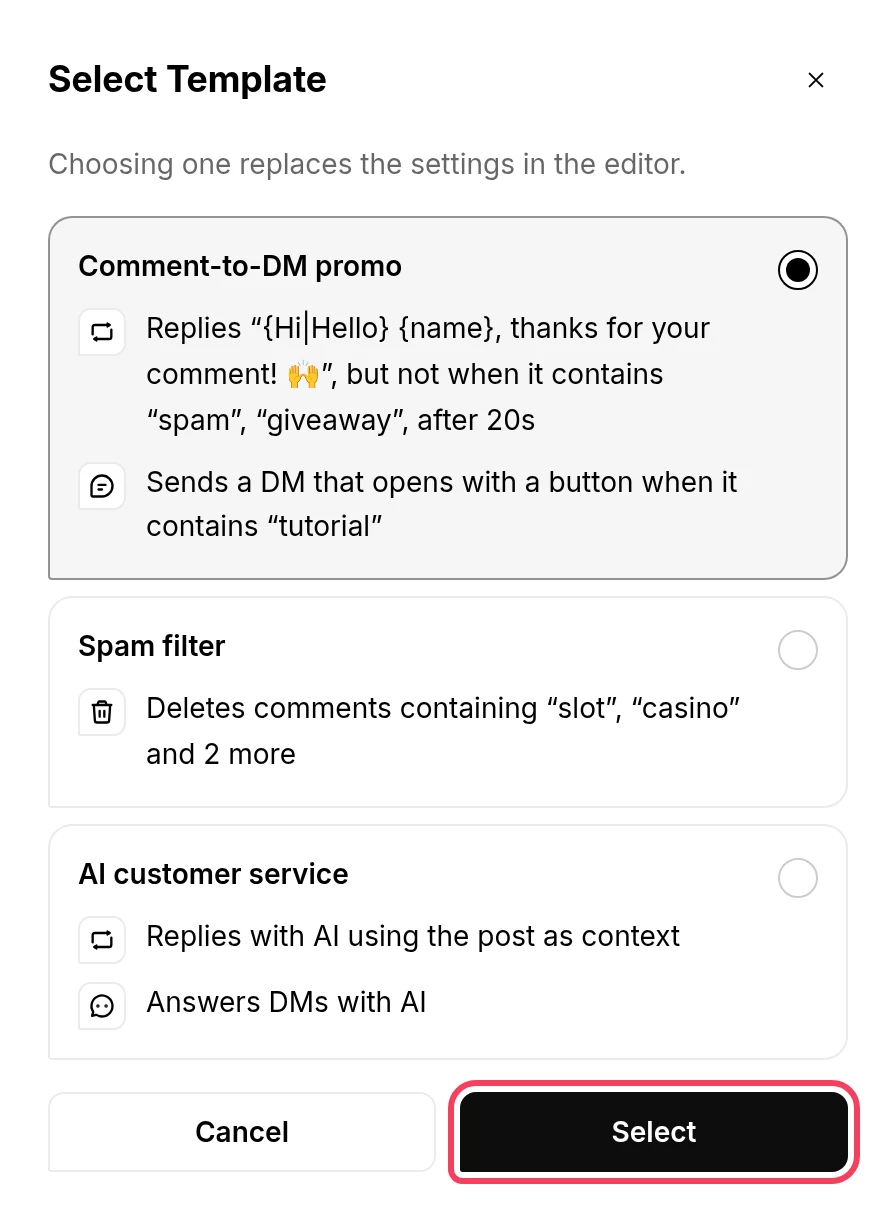
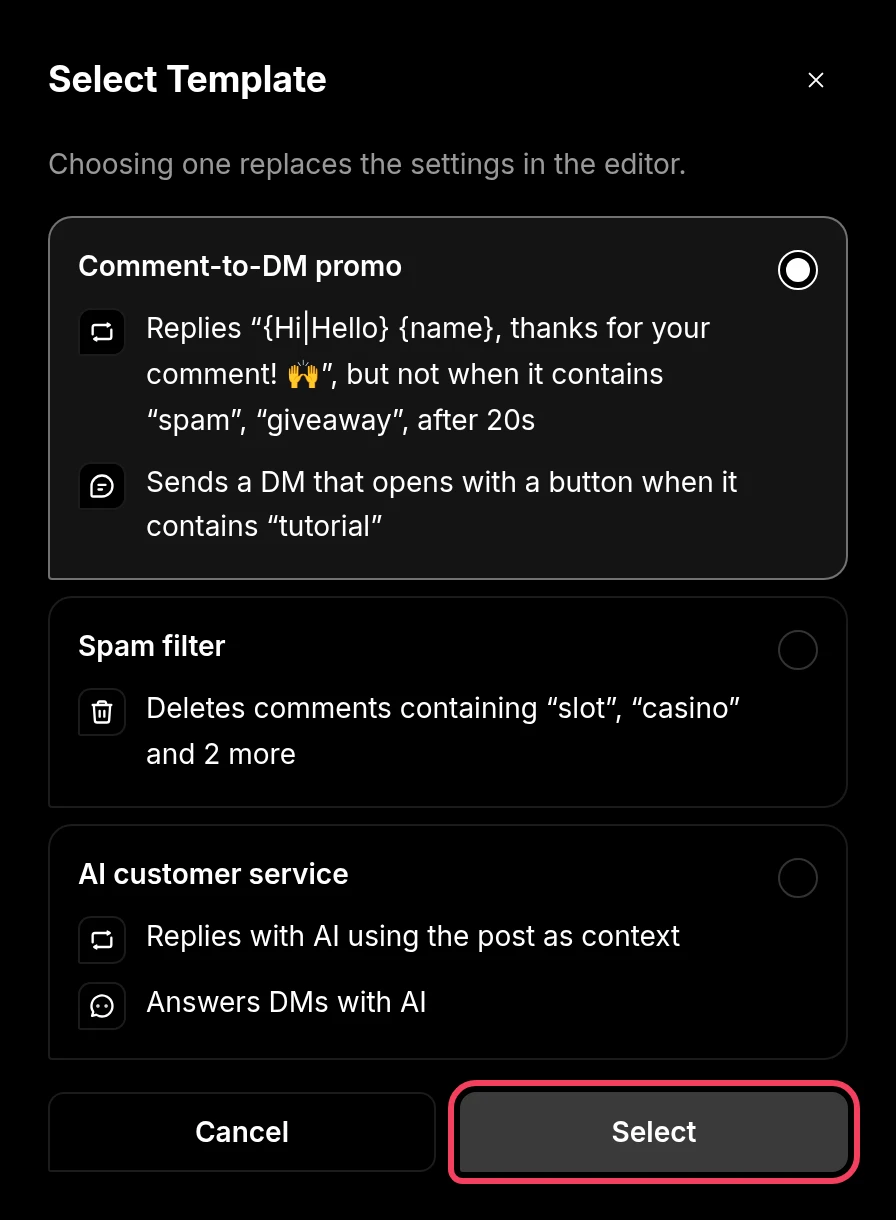
Check the settings, change anything this account or post needs, then click Save.
Applying a template replaces every setting in the window, and nothing is saved until you click Save. Later changes to the template don't change automations you already saved with it.
A template can hold automations the account or post can't run. Those come in switched off:
| Where you apply it | What's applied |
|---|---|
| An account | Every automation the platform supports. See Automations at a glance. |
| A post | Delete Comment and Reply Comment, plus Like Comment on Facebook, TikTok, and LinkedIn, and DM Comment on Facebook and Instagram |
| An Instagram story | Reply Story only |
Each template card reads back what the template does. The buttons under it: